You just exported a 4K video. It looks good, or at least, you think it does. You share the link and wait. Three days later, your client pings: “Hey! Amazing work, love the energy. Just one tiny thing – can we fix that weird shadow flash somewhere around the middle of the video? Thanks!”
You start thinking, “Around the middle?” The video is three minutes long. At 24 frames per second, that’s over 4,300 frames to hunt through. “The middle” could be anywhere. You spend the next hour scrub-scrolling through your timeline, trying to decode exactly what your client saw, and losing precious time.
This is not a client problem. If you are a video editor, director, or part of a post-production team, this story isn’t fiction, it’s one of your normal days. Handling ultra-high-definition content demands an ultra-high-definition communication style.
In this guide, we are going to unpack exactly how to annotate 4K video without breaking your system or your sanity. Let’s dive into how shifting to a dedicated frame-by-frame annotation workflow can transform your chaotic review loops into a fast, painless, and actually enjoyable experience.
Why Traditional Video Reviews Slow Teams Down
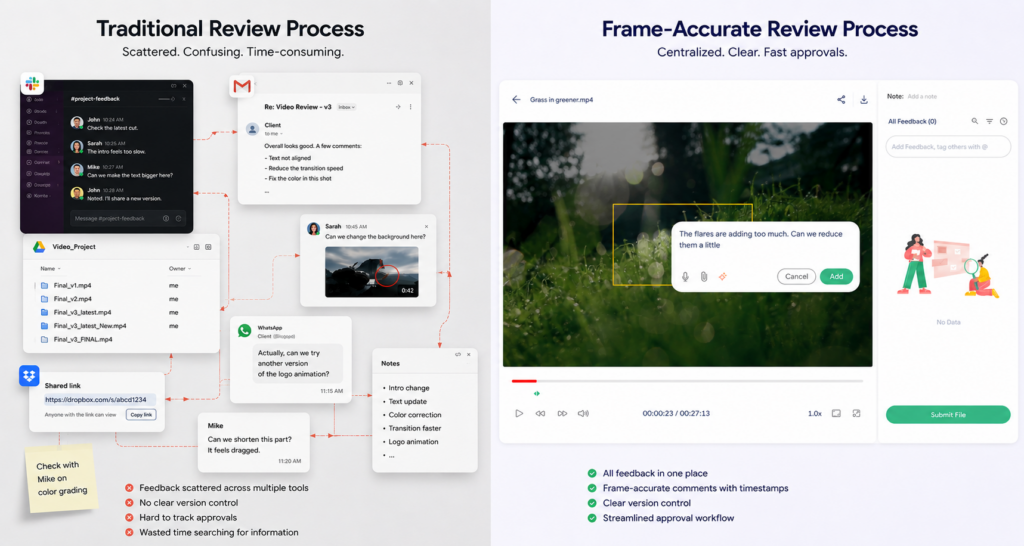
Most teams still review video the same way they did a decade ago. Someone exports the file, uploads it to Dropbox or Google Drive, shares a link, and asks the client to watch it and “send notes.”
Typically, a reviewer will watch a video draft, pause where they see an issue, look over at a spreadsheet or an email draft, and type something like: “Around the 45-second mark, the voiceover sounds a bit flat. Also the logo at the end – can it come in slower? And generally the pacing in the second half could be tighter.”
This manual approach introduces three major bottlenecks:
- The Translation Gap: What does “a bit off” mean? Is it the kerning? The tracking? The drop shadow? Without visual context, the editor is forced to guess, leading to trial-and-error edits that waste hours of export time.
- The Compression Nightmare: When you share a raw or lightly compressed 4K video file via standard file transfers, reviewers often experience stuttering playback. To compensate, editors frequently render out low-res proxies just for review, adding extra rendering steps to an already bloated schedule.
- The Frame Discrepancy: Standard timestamp feedback is notoriously imprecise. A timestamp like “01:14” contains 24, 30, or even 60 individual frames depending on your project settings. If a visual artifact or a boom mic dips into the shot for just two frames, a simple timestamp won’t capture it accurately, leaving the editor hunting blindly in the dark.
When your team spends more time trying to locate a problem than actually fixing it, your production budget vanishes into thin air.
What Is Frame-by-Frame Video Annotation?
To fix this bottleneck, modern creative teams are moving away from passive viewing toward active, contextual collaboration.
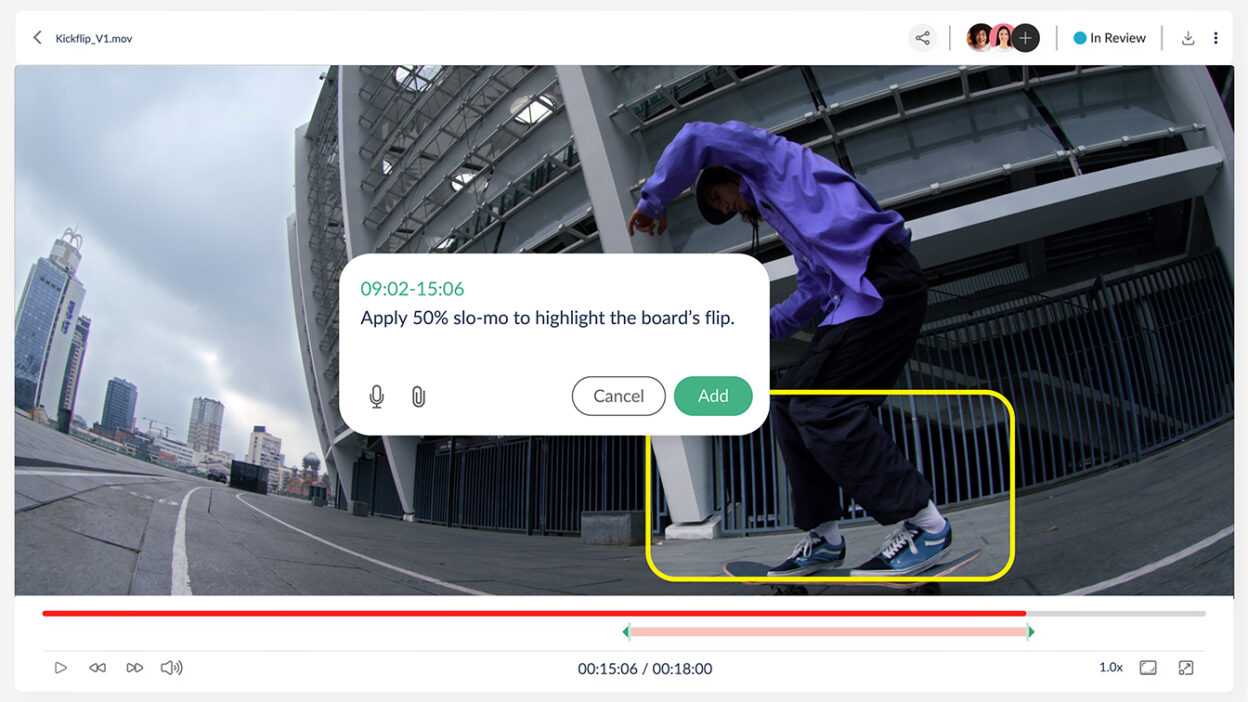
Frame-by-frame video annotation is the ability to pause a video at a specific frame and attach a comment, drawing, or instruction directly to that moment in time.
Instead of writing “around the 45-second mark,” the reviewer pauses the video at exactly 00:44, clicks on the frame, and writes: “The voiceover sounds flat here – can we boost the warmth slightly?” The editor receives a comment that is pinned to that exact frame. No scrubbing. No guessing. No follow-up.
For 4K video especially – where precision matters enormously and file sizes make casual sharing painful – frame-accurate annotation is the difference between a one-round review and a five-round ordeal.
A good video feedback tool makes this feel effortless: reviewers click where they mean, editors know exactly what to fix, and the whole team moves faster.
Traditional Video Reviews vs Modern Video Annotation Reviews
To see how much time your team could be saving, let’s look at how traditional communication stacks up against a modern, integrated review and approval workflow.
| Traditional Reviews | Modern Annotation |
| Feedback spread across email and chat | Centralized review workspace |
| Vague timestamps | Exact frame-level comments |
| Endless revision rounds | Faster Approvals |
| Manual screenshot references | Direct on-video annotations |
| Version confusion | Organised Version Tracking |
| Feedback gets buried | Actionable review system |
Why Frame-Accurate Feedback Reduces Revisions
Here is the counterintuitive truth about video revisions: most extra rounds of feedback are not caused by the client wanting too much. They are caused by the editor not knowing exactly what was meant.
A reviewer may know exactly what they want changed, but if that feedback is detached from the frame, timeline, or visual element they are referring to, editors spend time searching for the right moment before they can even start making changes. Multiply that across dozens of comments, and revision cycles quickly become longer than they need to be.
Frame-by-frame annotation keeps feedback attached to the exact moment it refers to. When a reviewer pins a comment to frame 03:24, the editor can jump directly to that frame, see the visual context, understand the request, and make the change immediately. There is no need to cross-reference screenshots, search through timelines, or ask where the issue was spotted.
That is why teams using timestamp feedback often complete reviews faster. The feedback is not necessarily better; it is simply delivered in the right place, at the right moment, with the right context.
How ButtonShift Simplifies 4K Video Collaboration
Most video review tools were built for one thing: video. That means your team still needs a separate tool for tasks, another for messaging, and another for approval sign-offs.
ButtonShift’s feedback tool was built to handle the whole creative review process in one place. You upload the 4K video, reviewers annotate frame by frame, the team discusses it in the same workspace, tasks are created directly from comments, and then the client can finally approve – all without switching tabs.
For annotating a 4K video specifically, this matters more than it sounds. Large files need a stable, purpose-built environment. Comments need to stay attached to the right frame even as the file is compressed or re-exported. Reviewers need to be able to leave range feedback – selecting a span of video, say from 0:30 to 1:15, and attaching a single note about pacing across that whole section, rather than only frame-level pins.
And when the video goes through multiple versions, ButtonShift keeps the feedback history attached to each iteration. Editors can see exactly what was said about v1, what changed in v2, and what the client approved in v3. No archaeology through email threads required.
The 3-Step Process for Faster Video Reviews using ButtonShift
Getting your team onto a frame-accurate annotation workflow does not require a complex setup. Here is how you can do it easily with ButtonShift.
Step 1: Upload a video to your workspace
Instead of sending a Drive link or attaching a file to an email, you can upload the video directly to your workspace. This gives everyone – editors, directors, clients, a single version to look at. No “which file did you watch?” confusion, no version mix-ups. Keeping all versions in one place also makes it easier to track changes and avoid creative overlaps. This article on managing versions without losing old files covers exactly that.
Step 2: Invite reviewers with the right access
You can send your file directly for review by adding their email or send a link to your client or stakeholder using the Guest URL. They do not need to create an account. Assign them a Reviewer or Approver role which controls what they can do and they can start viewing and annotating on the video file. For teams, you can use ButtonShift’s messaging tool to discuss the changes made in video in the same workspace, keeping conversation attached to the project rather than scattered across Slack.

Step 3: Act on pinned, timestamped feedback
Every comment your reviewer/approver leaves is attached to a specific frame with a timestamp. You work through them one by one – no interpretation required, no follow-up emails needed. Once changes are made, upload the new version to the same file. Reviewers can compare the old and new version side by side and mark each comment as resolved. When everything is addressed, the Approver can simply “Approve” the file and voila!
That is a complete review and approval workflow in three steps.

Why Slack, Drive & Email Break Video Reviews
This deserves its own section because most creative teams defend these tools out of habit rather than evidence.
Many teams attempt to save money by stitching together a makeshift workflow using software they already pay for, like Slack for chat, Drive for storage, and email for client sign-offs. While these platforms are incredible for general office work, they fundamentally collapse under the weight of high-end video production.
Slack is excellent for quick conversations. It is genuinely not made for video review. Messages get buried. The video being discussed and the conversation about it exist in completely different places. Three weeks later, finding what was decided about that specific frame at 0:44 requires searching through hundreds of messages and probably failing.
Google Drive solves the file-sharing problem but nothing else. There is no way to comment on a frame, no approval workflow, no version comparison. It is a storage tool being used as a collaboration tool — and it shows in the email threads that inevitably follow every shared link.
Email is perhaps the worst offender. Every reply creates a new branch of the conversation. “I thought you meant the scene at 1:30, you meant the one at 2:45?” is a sentence that has cost creative teams millions of hours collectively.
The slack and email review workflow that most teams are still using was designed for words, not frames. When you’re annotating 4K video, you need a tool that was built for exactly that, one where the comment and the frame it refers to are permanently attached to each other.
Final Thoughts
The shift to frame-accurate annotation is not a technical leap. It is a workflow decision, one that separates teams who spend three weeks on a two-day job from teams who deliver on time, with fewer rounds, and happier clients.
Your 4K videos deserve better than an email thread. So does your time.
Frequently Asked Questions
What is frame-by-frame video annotation?
Frame-by-frame video annotation is the process of pausing a video at a specific frame and attaching a comment or instruction directly to that moment. It gives reviewers a precise way to flag issues without relying on vague time references or written descriptions.
Can clients annotate 4K videos without creating an account?
Yes. ButtonShift lets you share a review link with clients who can leave timestamped annotations as a guest. No download, no account setup – they click the link, watch the video, and leave their feedback directly on the frame.
Is frame-accurate annotation useful for short-form video like reels?
Absolutely. Frame-accurate feedback is arguably more important for short-form content, where a single frame’s difference in timing changes the feel of the whole piece. Annotating a 30-second reel with pin-precise comments is far more efficient than trying to describe a moment in a 30-second video in plain text.
What is the difference between a reviewer and an approver in a video review workflow?
A reviewer can watch the video and leave comments and annotations. An approver has the authority to request revision and approve the file. Keeping these roles separate ensures that feedback comes from many people but the final decision rests with the right person.
Can I compare two versions of a video after revisions are made?
Yes. ButtonShift keeps all previous versions of a video in the same file, so you and your client can compare what was changed between v1 and v2 without hunting through old email attachments or renamed files.